Voice commands
Hands-free WhatsApp Web — speak to open, archive, pin or search chats, and dictate messages with 18 recognition languages.
Voice commands turn Ideaz AI into a hands-free WhatsApp client — handy while driving, cooking or simply multitasking. Speech recognition runs through your browser's built-in engine (Chrome or Edge), so there is no extra API key and nothing to install.
Two things can happen when you speak:
- If the phrase matches one of the built-in commands (fixed English keyword phrases, listed below), the command runs — open a chat, archive it, search, and so on.
- Anything else is treated as dictation: the words are typed into the message box of the open chat, ready for you to review and send.
Open the Voice panel
Click the mic icon (Voice) in the Ideaz AI dock. The panel shows:
- A teal mic button with the hint "Tap the mic and speak". Click it to start listening — the button turns red and pulses, "Listening…" appears, and your words show up live as you speak.
- A recognition-language dropdown in the header (for example English (US)) — switch it on the spot; the choice is remembered.
- The full cheatsheet of commands, grouped exactly like the sections below, so you never have to memorise anything.
- When a chat is open, a small "Send to {name}" chip reminds you that dictation will land in that chat's message box.
Each tap captures one phrase: the mic stops automatically once you pause, the phrase resolves, and the result (a green tick or an error message) flashes in the panel. Press the square to stop early, or Esc to close the panel.
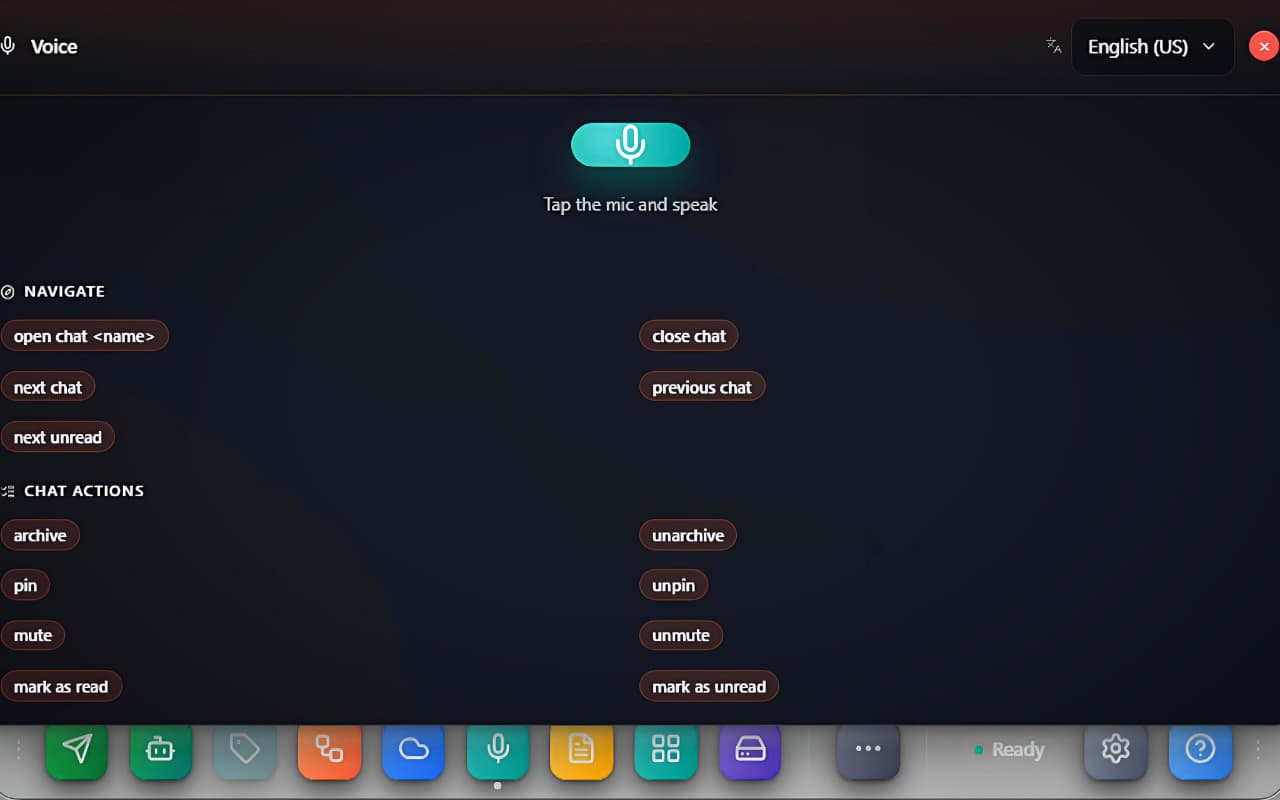 The Voice panel: mic button, recognition-language dropdown and the built-in command cheatsheet
What you can say
Command phrases are fixed English keywords — the same ones shown in the panel — and they work no matter which recognition language you dictate in. Small variations are accepted (synonyms below); anything that doesn't match a command becomes dictation.
Navigate
| Say | What happens |
|---|---|
open chat <name> | Finds and opens the chat (also: launch, switch to, go to) |
close chat | Closes the active chat (also: exit, leave) |
next chat / previous chat | Moves down / up the chat list |
next unread | Jumps to the next unread chat |
Chat actions
These act on the open chat — with none open, the panel answers "Open a chat first — say open chat <name>."
archive · unarchive · pin · unpin · mute · unmute · mark as read · mark as unread — each optionally followed by "this chat" ("archive this chat" works the same as "archive").
Compose and search
- Just speak — any phrase that isn't a command is typed into the open chat's message box (the panel confirms with "Sent to text box"). Nothing is sent automatically: review the text, then press Enter yourself.
type <anything>— explicit dictation prefix (also dictate, write, compose, message), useful when your sentence starts with a command-like word.search <query>— focuses WhatsApp's search bar and types the query (also find, look for).
Destructive commands
delete chat and clear messages first show a red confirmation card — for example "Delete this chat? All messages will be removed." — with Cancel / Confirm buttons. Nothing is deleted until you confirm. (You can skip this card with a settings toggle — see below.)
How chats are matched
When you say open chat Suresh, the target is matched against your chat list in four tiers, best first:
- Phone number — exact or suffix match when the target is 7+ digits. Spelled-out digits work too ("nine one nine" is read as
919). - Exact name — case-insensitive ("Suresh Kumar" opens the chat named exactly that).
- First-name match — "Suresh" opens "Suresh Kumar".
- Substring — "sur" matches any chat containing "sur".
The best match opens immediately; if nothing matches, the panel says so and you can try again.
Languages and dictation
The recognition language decides how your speech is transcribed. 18 languages are available: en-US, en-IN, hi-IN, ar-SA, de-DE, es-ES, fr-FR, id-ID, it-IT, ja-JP, ko-KR, ms-MY, pt-BR, ru-RU, th-TH, tr-TR, vi-VN, zh-CN. Switch from the panel header or from settings — the choice persists.
Two practical rules:
- Dictation works in any of the 18 languages — speak Hindi, Arabic or Portuguese and exactly that text lands in the message box.
- Command phrases are English-only. Say
open chat Carloseven if your dictation language is Spanish; spoken Spanish that isn't a command is simply dictated as text.
Voice and dictation settings
Open the dock's Settings icon → Voice & Dictation:
- Enable voice commands — the feature's master switch.
- Recognition language — same list as the panel header; the hint says it best: "Use the same language you'll speak in."
- Skip confirmation for destructive actions — off by default; turn it on only if you really want
delete chatto fire without the confirm card. - Use AI to understand unclear commands — reserved for an AI-parsing upgrade; the keyword phrases above are the dependable set.
The same window also configures two sibling voice features: Voice Note AI (auto-transcribe and summarise incoming WhatsApp voice notes — needs an OpenAI or Groq key in the AI Assistant) and Voice notes (memos) storage, with a Clear all voice notes button.
<!-- screenshot: drop /screenshots/docs/voice-commands/settings.jpeg here -->Privacy
As the settings panel puts it: "The mic only listens while a panel is open. Voice notes are stored locally on this device and never uploaded." Speech-to-text is performed by your browser's own speech engine (Google's service in Chrome), never by Ideaz AI servers — the extension only sees the final transcribed text, and command matching runs locally in your browser.
Troubleshooting
- "Microphone permission denied" — allow the mic for
web.whatsapp.cominchrome://settings/content/microphone, then try again. - "Voice recognition not supported in this browser" — the Web Speech engine is missing; use Chrome or Edge.
- A command came out as text in the message box — that is the designed fallback: unmatched phrases become dictation. Use the exact keyword phrases from the cheatsheet.
- Wrong words recognised — your recognition language probably doesn't match the language you are speaking; switch it in the panel header.
- The mic stops by itself — each tap captures a single phrase, and the mic also stops after prolonged silence. Just tap it again.