Agentic tools
A five-tab control room for WhatsApp automation — an escalation ladder of agents, a human team, a knowledge base, guided flows, and live insights.
The Agentic tools are Ideaz AI's automation brain. They open from a single Agentic icon in the dock (a small robot), in a window titled Agentic System, with five tabs across the top: Agents, Team, Knowledge, Flows and Insights.
The whole system is one idea: a deflection ladder. An incoming message is driven down a chain of agents — FAQ → Workflow → AI → Human — until one of them resolves it or it reaches a real person. Each rung is a configurable agent; the master switch (the Conversation Router) is off by default, so nothing replies until you turn it on.
There are two halves. The five tabs above run inside the extension, in your live WhatsApp Web tab. The Agentic tools also have a server-side half — chatbot flows and an Auto-Reply Center that run on our servers for a number you link by QR, replying even when your browser is closed. Those are covered at the end, under Server-side automation.
Agents
The Agents tab is the Agent Studio, where you configure the escalation ladder. Its subtitle says it plainly: "Configure your escalation ladder — FAQ → Workflow → AI → Human."
At the top sits the Conversation Router — the master switch. The help text reads "Master switch. When on, incoming messages flow down the agent ladder. Off by default." Toggle it On to let the ladder run; leave it Off and the whole agentic system stays dormant.
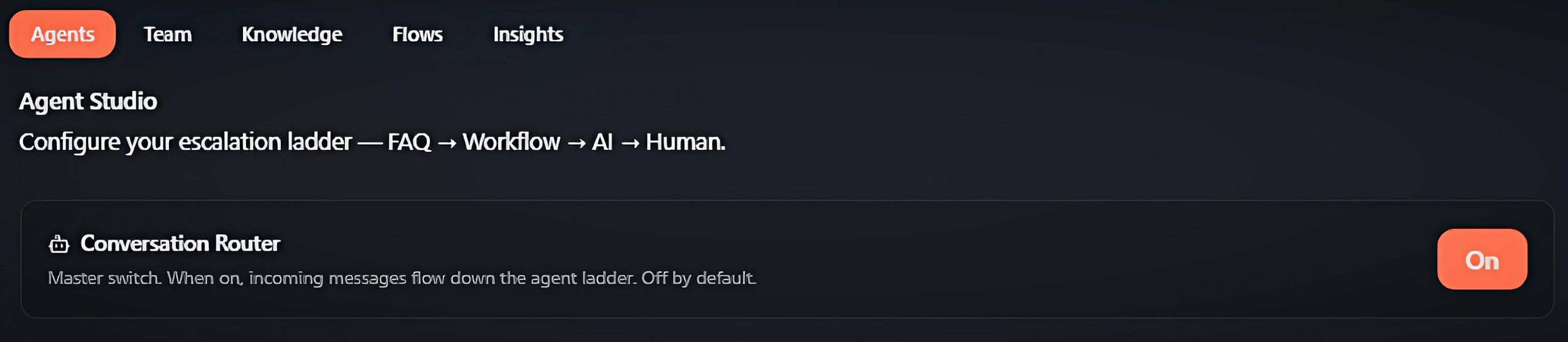 Agents tab: Agent Studio with the Conversation Router master switch
Below the switch is one card per agent. Every card has the same controls:
- Name — a free-text label for the agent.
- Tier — a read-only badge showing which rung this agent occupies: FAQ, Workflow, AI or Human.
- Autonomy — how far the agent is allowed to act on its own:
- Auto-send — it replies to the customer directly.
- Draft only — it writes a suggested reply into your composer for you to review and send (the ban-safe default for the AI tier).
- Route only — it takes no message action, just moves the conversation along the ladder.
- Enabled — an On / Off toggle for that single agent.
The first card is the FAQ tier — here a "FAQ Bot" set to Auto-send. It answers instantly from your knowledge base before any heavier tier is consulted.
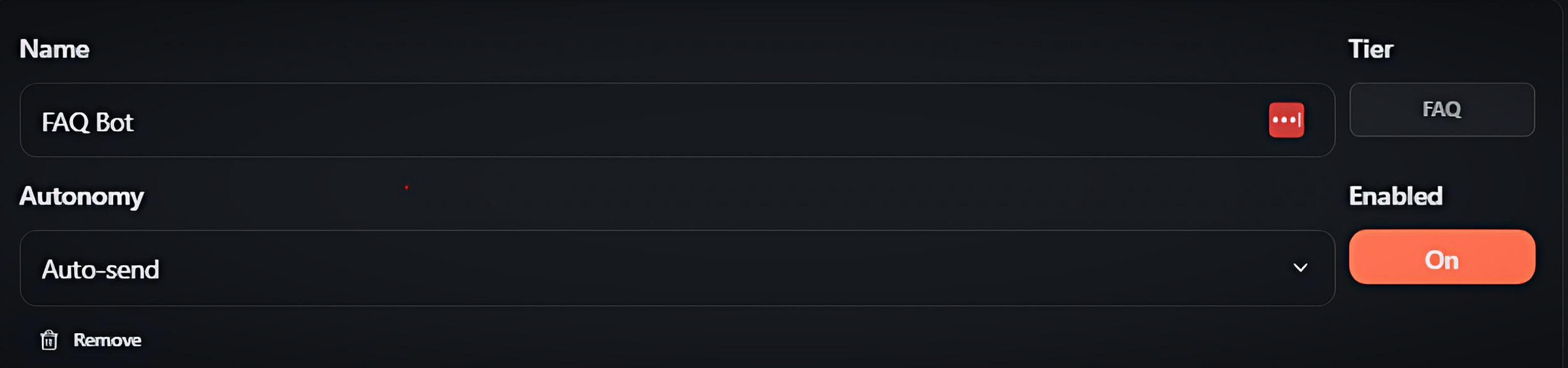 FAQ agent card: name, FAQ tier, Auto-send autonomy and Enabled toggle
The AI tier card adds one extra field — AI persona / system prompt — a free-text box that tells the AI how to behave (for example, "You are a helpful, concise WhatsApp support assistant. Answer only from the provided knowledge base… if you are not confident, do not guess."). The AI tier defaults to Draft only so it never sends an unreviewed message.
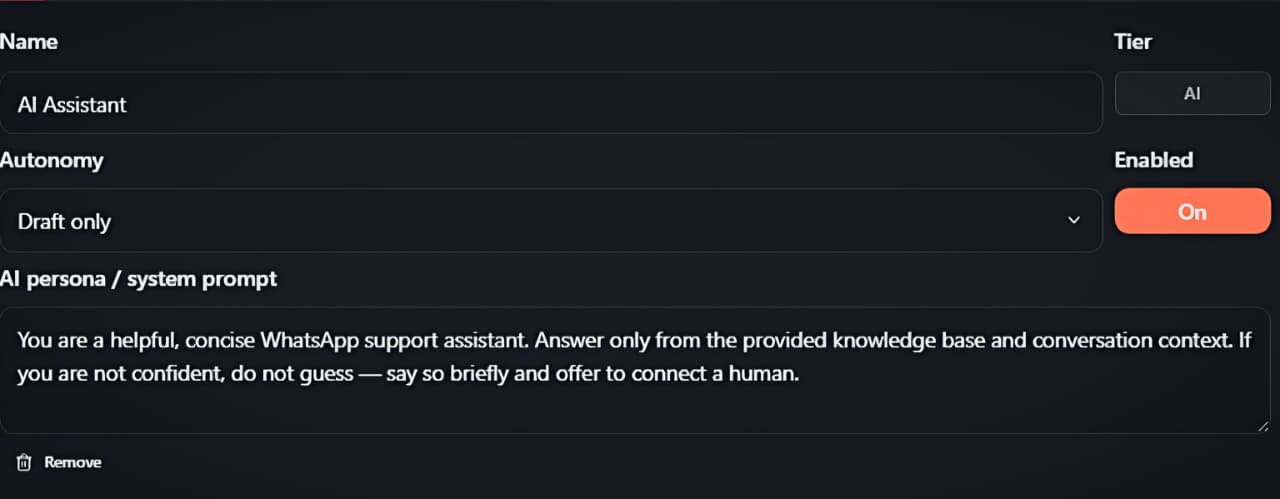 AI agent card: AI tier, Draft only autonomy and the AI persona / system prompt box
The last rung is the Human tier — a "Human Team" agent set to Route only. When every bot tier above gives up, the conversation is handed to your human team (see the next tab). Each card has a Remove button, and Add agent at the bottom creates a new one.
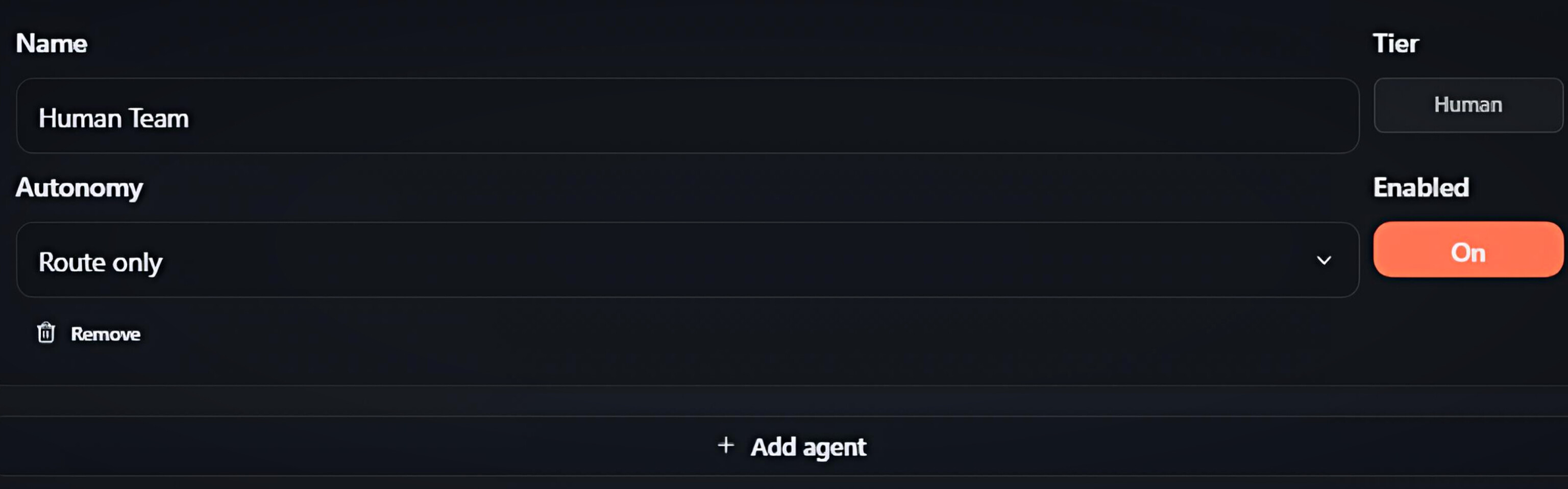 Human agent card set to Route only, plus the Add agent button
Team
The Team tab is the admin panel for the human tier — "Manage your team, plan, and member sign-in for the human tier." This is where conversations that escalate past the bots get auto-assigned to real teammates by round-robin.
- Settings — choose your Plan (Free (4 seats) or Meta Verified (10 seats)) and flip Team mode On / Off. A line shows "Seats used: {used} / {cap}" so you always know how much headroom is left.
- Member sign-in — a teammate signs in with their Username and Password. Once signed in, the panel shows "Signed in as {name} ({role})" with a Sign out button, and that agent's chat list locks to only the chats assigned to them.
- Members — each row shows the member's name, @username and role (Admin / Agent), with Enable / Disable and delete controls.
- Add member — create a teammate with Full name, Username, a role (Agent / Admin) and a Password (min 6). The seat cap is enforced: once the plan is full you'll see "Seat limit reached" until you upgrade or remove someone.
Team mode is backend-driven and scoped to your WhatsApp number — if the number isn't detected yet, the settings can't load, so make sure WhatsApp Web is fully linked first.
<!-- screenshot: drop /screenshots/docs/auto-reply/team.jpeg here -->Knowledge
The Knowledge tab holds two surfaces, picked with a segmented switch: Rules (the default) and Training (AI).
Rules is the Auto-Answer Rules engine — the front line of the ladder. "Reply automatically to greetings, keywords, or every new chat — with typing, tags, stages and more." A master switch in the top-right turns the whole engine on. From here you can:
- Set global Business hours (a collapsible panel) so rules only run inside your working window, with an optional away message outside it.
- Start fast with Quick start: greeting reply, or build from scratch with New rule.
- See each rule as a card with scope chips (1:1 / Groups), its trigger, a fires counter, and Edit / Duplicate / Delete actions.
- View your Website button flows as a read-only mirror, so you don't accidentally recreate a flow you already built on the website.
Opening a rule reveals the full editor: a Name; Run in (Direct 1:1 and/or Group chats); When to run (Every message, Every new chat, or Selected keywords with a match mode — whole word, starts with, ends with, or contains); a Schedule (use business hours or custom hours via a weekday grid); Send options (show typing, don't run when the chat is open, mark as read); an ordered Actions chain (Reply text or media, Tag, Kanban stage, Webhook, Archive, Block, Group); and a Repeat policy (Once per contact, Cooldown, or Always).
Training (AI) is the Knowledge base — "FAQ entries the Tier-1 bot answers from." Each entry is a Question, an Answer and optional comma-separated Keywords. These entries both power the FAQ tier and ground the AI tier, so it answers from your facts instead of guessing. Add entries with Add FAQ, toggle each one Enabled, and remove the ones you no longer need.
<!-- screenshot: drop /screenshots/docs/auto-reply/knowledge.jpeg here -->Flows
The Flows tab builds Tier 2 of the ladder — "Build guided question flows the workflow agent runs between FAQ and AI." A flow is a small decision tree that walks a customer through a structured conversation before any AI is needed.
- Pick an existing flow from the Flow dropdown, or click New flow.
- Give it a Name, flip Enabled, and choose the Start node.
- Build the tree from nodes, each with a type:
- Message — send a line of text, then continue to the next node.
- Question — ask something and offer numbered options, each pointing to a next node.
- Collect input — capture the customer's reply into a named variable for later.
- End — finish the flow.
- Escalate — hand off to the next tier (AI, then human).
- Use Add node to grow the tree, Save flow to persist it, and Use in ladder to link this flow to a workflow agent so it actually runs.
Insights
The Insights tab is a read-only dashboard — Agent insights — that shows "how your agentic ladder is performing — deflection, escalation, and load." It's computed locally from your own conversation data, with no background workers.
Three headline counters sit at the top:
- Bot deflection — the share of conversations the bots resolved without a human.
- Conversations — the total number tracked.
- To human — how many escalated all the way to a person.
Below them, bar charts break conversations down By status (Bot, AI, Human, Resolved) and By current tier (FAQ, Workflow, AI, Human). Top FAQ answers lists your most-used knowledge-base entries with how many times each one answered, and Agent load shows the number of open chats assigned to each teammate. Until the Router is on and messages start flowing, this tab shows "No conversation data yet."
<!-- screenshot: drop /screenshots/docs/auto-reply/insights.jpeg here -->Server-side automation
Everything above lives inside the extension and runs in your open WhatsApp Web tab. The Agentic tools also have a server-side half that runs on our servers, around the clock, for a WhatsApp number you link by QR — so it keeps replying even when your browser, the extension, or your computer is closed. You build and manage it from your dashboard on the website (not in the extension), under the Automation menu.
The two halves are independent engines. The Auto-Reply Center brings them into one view so you can see everything a number replies to without duplicating a reply across both.
Connect WhatsApp
Before any server-side automation can run, link a number under Connect WhatsApp — "Link a WhatsApp number by scanning a QR. This number sends interactive button messages and runs your chatbot flows — independent of the browser extension."
- Click New connection to start a session, then scan the QR from your phone with WhatsApp → Settings → Linked devices → Link a device.
- A status badge tracks the link: Connected, Scan QR, Connecting…, Offline, Logged out or Conflict.
- Your numbers lists every linked session; you can Refresh QR, Unlink or Delete a number at any time.
This is a separate, server-hosted login from your everyday WhatsApp Web, so use a dedicated number for automation.
<!-- screenshot: drop /screenshots/docs/auto-reply/connect-whatsapp.jpeg here -->Chatbot flows
The Chatbot flows page is a visual, drag-and-connect builder — "Build a conversation visually. When a message comes in to a connected number, the matching flow runs server-side — sending messages/buttons and branching on the reply." These are the interactive button flows the extension's Knowledge tab shows you read-only as "Website button flows".
Each flow has a Flow name and Flow id, a Trigger (Any message or Keyword, comma-separated), and an optional schedule — "Run the chatbot only at set times": pick the weekdays, a start–end time, a timezone, and an optional date range. Outside the window the chatbot stays silent (an in-progress conversation still finishes).
You build the conversation on a canvas from a palette of node types:
- Send text — send a message, then continue to the next step.
- Send buttons — send a body (and optional footer) with quick-reply buttons.
- Wait reply — pause and capture the customer's reply into a variable.
- Branch — route to a different step based on which button was tapped, with a default ("else") path.
- Webhook — POST
{ waJid, vars, inbound }to your URL; the JSON response merges back into the flow's variables. - End — stop the conversation.
Click a node to edit it, set the start step with the flag (🚩), and connect steps by dragging from a node's handle or via the dropdowns. Advanced users can switch to the JSON editor and edit the raw flow (a Welcome menu starter is built in). Save flow publishes it; the Active flows list lets you toggle each one On / Off, Edit, edit its JSON, or delete it. If a flow's keyword overlaps another flow or a synced extension rule, a non-blocking clash warning appears.
<!-- screenshot: drop /screenshots/docs/auto-reply/chatbot-flows.jpeg here -->Auto-Reply Center
The Auto-Reply Center is a single pane of glass over both engines — "Both engines in one place — extension rules and website button flows for this number. Each item is edited where it lives; this view stops you accidentally creating the same reply twice."
- Pick a connected Number, then search or filter by All, Button flows or Rules.
- The table lists every auto-reply with its Name, Type (Button flow or Simple rule), Trigger, Runs on (a Website or Extension badge) and Status (On / Off).
- The Edit column links button flows to Open builder ↗ (the Chatbot flows page); extension rules are marked In extension, because they are edited there and synced here read-only.
In short: button flows are built on the website and run server-side; simple text/media rules are built in the extension and mirror into this Center. Both engines run independently — the Center exists purely so you don't accidentally build the same reply twice.
<!-- screenshot: drop /screenshots/docs/auto-reply/auto-reply-center.jpeg here -->