
Templates
Save reusable messages with variables, spintax and attachments — then drop them into any chat by typing a backslash.
Templates are reusable messages you save once and fire anywhere. A template can hold several message items (text and media, sent in order) and personalises itself per chat through variables and spintax. You can insert one into any conversation in two keystrokes, wire it into auto-reply rules, or send it from the Kanban board.
Template manager
Click the Templates icon in the Ideaz AI dock. The manager window gives you:
- Search templates — filters by title, body text or tag as you type.
- + New — opens the editor to create a template.
- Category pills — All plus one pill per category, each with a live count (for example All (27) · Qualification (5) · Sales (12) · Support (10)). Click a pill to filter.
- Filter by tag: — once your templates carry tags, a chip row appears; click a chip to filter, clear × to reset.
- The template list — each row shows the title, a paperclip when media is attached, the shortcut chip if one is set, and a one-line preview of the body. Row actions: Copy text (copies the body to your clipboard), Edit and Delete.
- A footer counter: "N total · type \ in any WhatsApp chat to quick-insert".
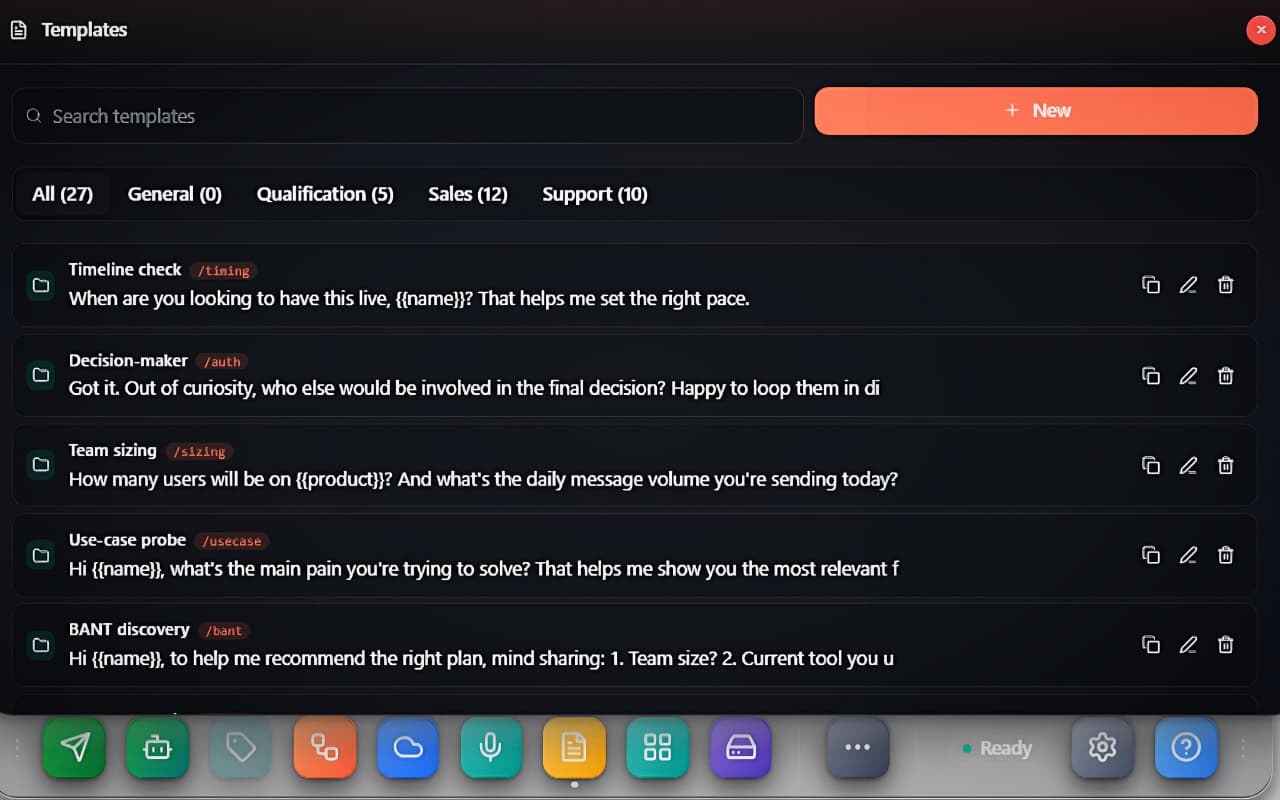 The Templates manager: search, category pills with live counts and the template list with shortcut chips
Create a template
+ New opens the editor (clicking any existing row opens the same editor pre-filled). Save stores it, Cancel discards, Delete removes a saved template.
Fields
- Title — the name shown in the list and the picker.
- Category — one of your categories (the starters ship with Sales, Support, Qualification and General).
- Backslash shortcut — optional quick code, e.g. promo. The helper text shows exactly what it unlocks: "Type
\promoin chat to insert." Spaces are stripped automatically. - Tags — free-form labels for filtering the library ("Add tag and Enter…"). These are template-library labels, independent from the chat tags in Tag Management.
Message items
A template is an ordered list of message items, delivered top to bottom:
- Add text — a plain text block (variables and spintax work here).
- Add media — "Click to choose image, video, or file": images, videos, audio, PDF and office documents, up to 2 MB per item, each with an optional Caption (variables work in captions too).
- Reorder items with Move up / Move down, drop one with Remove item.
Mixing items lets one template send, say, a greeting text, then a brochure PDF with a caption, then a closing question — in a single pick.
<!-- screenshot: drop /screenshots/docs/templates/create-template.jpeg here -->Variables and spintax
- Variables — drop
{{name}},{{first_name}},{{phone}},{{number}},{{date}}or{{time}}into any text or caption. They are filled from the chat you insert into at the moment of insertion. In the bulk sender, your CSV columns additionally provide{{firstname}},{{lastname}},{{custom1}}and{{custom2}}per recipient. A variable with no value is removed cleanly — the literal{{name}}never reaches a recipient. - Spintax — write
{Hi|Hello|Hey}and one variant is picked at random on every send, so repeated sends don't read byte-identical.
The backslash picker
Type \ in any WhatsApp chat composer — at the start of the message or right after a space — and the picker pops up above your cursor:
- The header counts the matches; keep typing to filter (
\promomatches shortcuts first, then template titles). - Navigate with ↑ ↓, insert with Enter or Tab, dismiss with Esc (typing a space also closes it). Clicking a row works too.
- A text-only template is inserted into the composer with its variables already filled — you can still edit before pressing send.
- A template with media is sent immediately to the open chat (attachments can't be staged inside WhatsApp's composer), with a short human-like pause between items.
Why \ and not /? WhatsApp Business's native / quick replies keep their own popup — the two features coexist without stepping on each other.
Don't want the picker? Turn it off under Settings → All settings, section Templates: "Show templates on \ trigger".
Starter templates
On first run Ideaz AI seeds 27 ready-made templates across the Sales, Support and Qualification categories — introductions, follow-ups, pricing, invoices, escalations, BANT discovery and more, pre-wired with variables and spintax. They are ordinary templates: edit, re-categorise or delete them freely.
Where else templates work
- Auto-reply rules — a rule's reply action can fire a template, media items included. See Agentic tools.
- Kanban quick reply — send a template to a deal's chat straight from the Kanban board.
- Synced across your devices — the library syncs to your account in the background (on load and every 15 minutes; the latest edit wins, deletions follow too), so the same templates appear wherever you sign in.
Good to know
- The
\trigger only fires at the start of a word — mid-word backslashes are ignored, and a space closes the picker. - Copy text copies the template body to the clipboard — handy for pasting outside WhatsApp.
- Media files are stored inside the template in your browser; the 2 MB-per-item cap keeps the library fast and well under WhatsApp's own sending limits.
- The picker shows the 10 best matches — give your most-used templates short, distinct shortcuts so they surface with one or two characters.