
Bulk sender
Send thousands of personalised messages with safe pacing — recipients, message, schedule, post-actions and analytics, all in one place.
The bulk sender is Ideaz AI's flagship feature. It turns WhatsApp Web into a mini campaign tool — but with the personal touch (and anti-ban safety) that real WhatsApp marketing demands.
It is split into two surfaces:
- Bulk Sender — the campaign builder, where you pick who to message, write the message, set the schedule, and send.
- Analytics — a reporting dashboard that records every campaign you have ever sent, with per-campaign exports.
Analytics
The Analytics view is the record of everything you have sent. It opens from the dock and gives you an at-a-glance health check plus a full, exportable history.
At the top sit four counters that sum up your entire sending history:
- Total — every message ever queued across all campaigns.
- Sent — messages WhatsApp accepted successfully.
- Failed — messages that could not be delivered.
- Skipped — recipients that were skipped (for example, no WhatsApp account, or filtered out by a skip-tag).
Below the counters is one card per campaign. Untagged sends are grouped by date; tagged sends are grouped by their campaign tag, so a recurring "Diwali Campaign" stays together. Each card shows its label, date and a summary of total / sent / failed, and gives you four actions:
- View — open a drill-down table of every recipient, with phone, status, the campaign, any attachment, the failure reason and a timestamp. Each row can be opened further to read the exact message body that was sent.
- Download XLSX — export the campaign as an Excel sheet.
- Open in Google Sheets — push the campaign straight into a new Google Sheet.
- Download JSON — export the raw data for your own tooling.
Bulk Sender
The campaign builder is a five-step wizard. The steps are stacked as an accordion — only one is open at a time, and completing a step auto-advances you to the next, so you simply fall down the page from top to bottom:
- Recipients — who you are sending to.
- Messages — what you are sending.
- Schedule — when it goes out.
- Audience actions — what happens to each chat after a successful send (optional).
- Settings — pacing and anti-block controls.
Recipients
Step 1 is where you build your audience. There are six source tabs across the top — Numbers, CSV, Groups, Community, Tag and Kanban — and you pick the one that matches where your list lives. The step is marked complete as soon as it has resolved at least one recipient.
Numbers
Type or paste numbers directly. This is the fastest way to fire off a list you already have.
- Country — the default country code (for example, India (+91)). Any number you enter without a country code is automatically prefixed with this one; numbers that already carry a
+country code are detected and kept as-is. - Campaign tag (optional) — a free-text label such as Diwali Campaign. It groups this send in Analytics so you can find it later.
- Phone numbers — one per line, or separated by commas or semicolons. Each number must have at least 8 digits to count.
- Paste numbers — pastes your clipboard into the box and jumps you to the next step.
- Batches — every time you add or sync numbers, Ideaz AI records the action as a batch with an id like
BATCH_20260604_121615_MANUAL_1(date · time · source · count). The dropdown keeps your 50 most recent batches so you can re-paste a previous list in one click without rebuilding it.
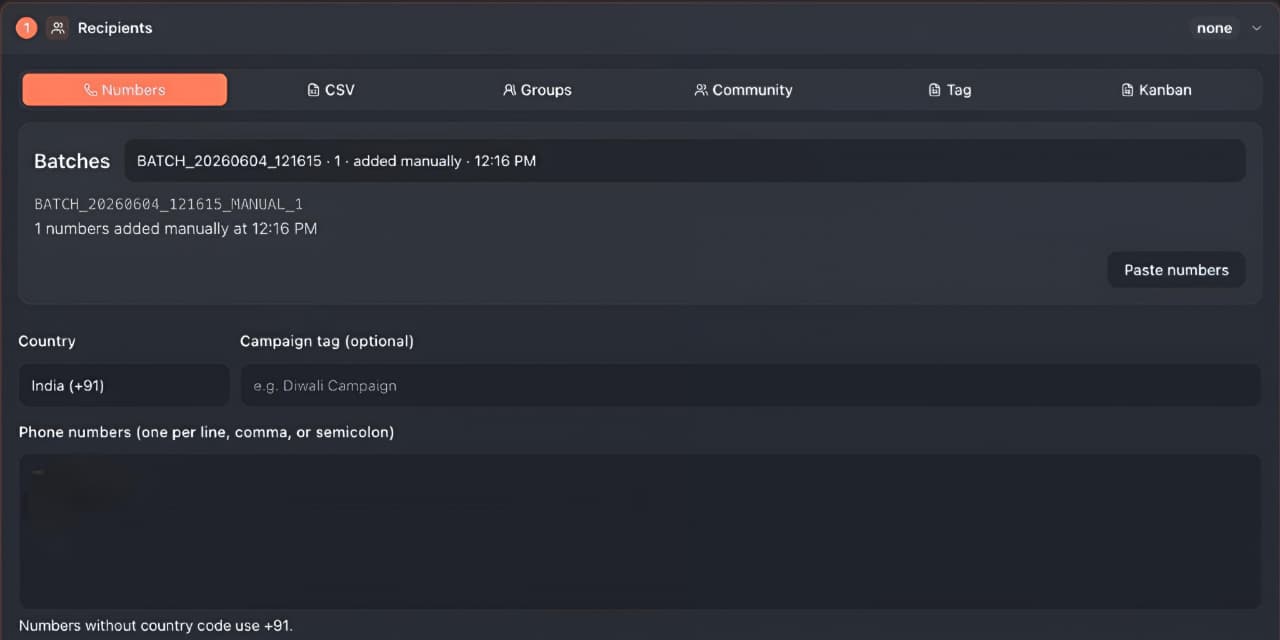 Recipients → Numbers: country, optional campaign tag, paste box and recent batches
CSV
Import a spreadsheet to send personalised messages using columns as variables.
- Need a starting point? — download a ready-made template (as CSV or Excel) with the right headers —
phone, name, firstname, lastname, custom1, custom2— plus two sample rows. Replace the sample data with your own and drop the file back in. - Drop CSV / Excel here or click — drag a
.csv,.xlsxor.xlsfile onto the zone, or click to browse. Columns are auto-detected the moment the file lands. - Column mapping — confirm which column is the phone (required) and optionally map name, first name, last name, custom 1 and custom 2. A live preview of the first row shows you what was matched, and any parse errors are flagged inline.
Those mapped columns become the {{name}}, {{firstname}}, {{custom1}} and {{custom2}} variables you can drop into the message in the next step.
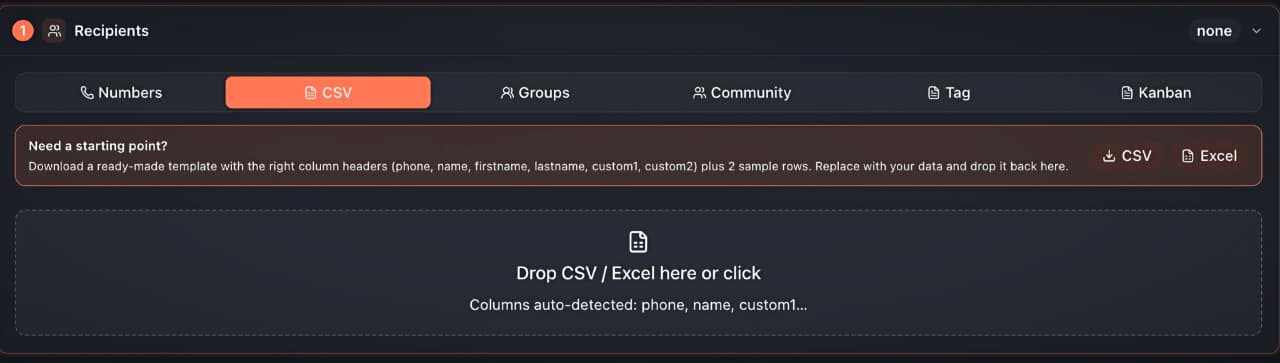 Recipients → CSV: download a template, drag a file, and auto-detected columns
Groups
Send to the members of WhatsApp groups you are in.
- Search groups — filter the list by group name.
- All / Clear — select or deselect every visible group at once.
- Checkbox list — tick the groups you want; each row shows the group name and an unread badge where relevant.
- The footer reads "{selected} selected · showing {filtered} of {total}" so you always know how big your reach is.
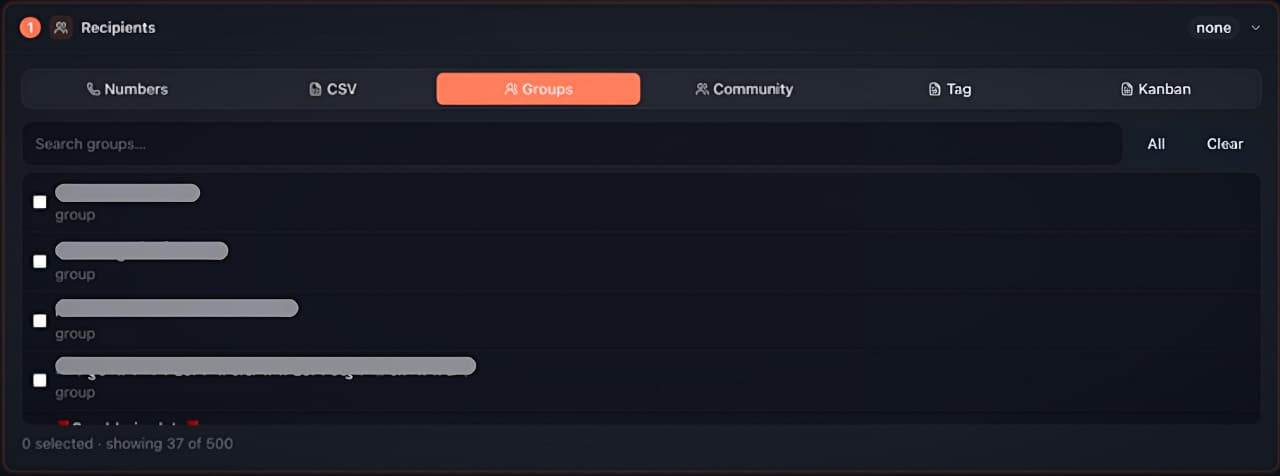 Recipients → Groups: search, select all/clear, and a checkbox list of your groups
Community
Reach the members of a WhatsApp Community and its announcement sub-groups.
- Pick a community — choose one of your communities; it expands to show its sub-groups.
- Sub-groups (pick one or more) — tick the sub-groups to message; each shows its recipient count so you know the size before you commit.
- Batch range — because communities can be huge, you send in batches. Choose Next N to auto-continue from where you left off, or set an explicit from–to range, with a configurable batch size.
- Options — toggle whether to include group admins and yourself.
- Risk acknowledgement — messaging community members who never saved your number is high-risk, so a confirmation checkbox must be ticked before the send is allowed. Captured recipients are tracked so the same people are not messaged twice across batches.
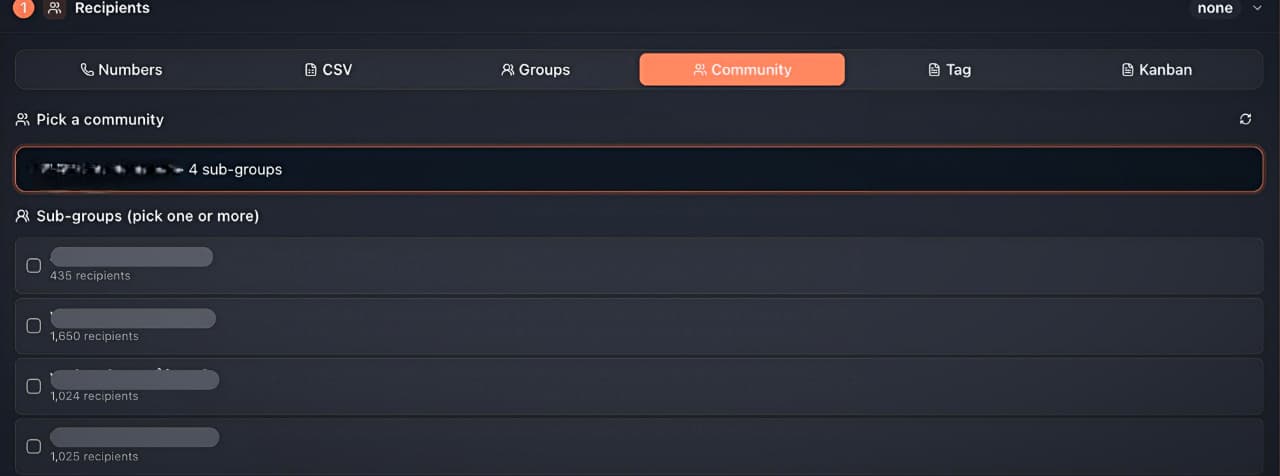 Recipients → Community: pick a community, then choose sub-groups with live recipient counts
Tags
Send to every chat carrying one of your CRM tags. (In the app the tab is labelled Tag.)
- Pick tags — every tag you have created shows as a coloured chip (for example, Hot Lead, Lead, VIP, Customer, Payment pending, Invoice). Click to toggle a chip on.
- As you pick, the footer updates live with "{count} chats resolved" — the number of real chats that match your selection and will receive the message.
This is the bridge between your tag management workflow and a one-click broadcast.
 Recipients → Tags: toggle coloured tag chips and watch the resolved chat count
Kanban
Send to the deals sitting in chosen stages of a Kanban pipeline.
- Pipeline — pick which pipeline to pull from (your default pipeline is selected automatically).
- Stages — search and select one or more stage chips (for example, Lead, Contacted, Qualified, Proposal, Won, Lost).
- A helper line tells you how many chats in the selected stage(s) will be sent, counting only active (non-archived) deal cards.
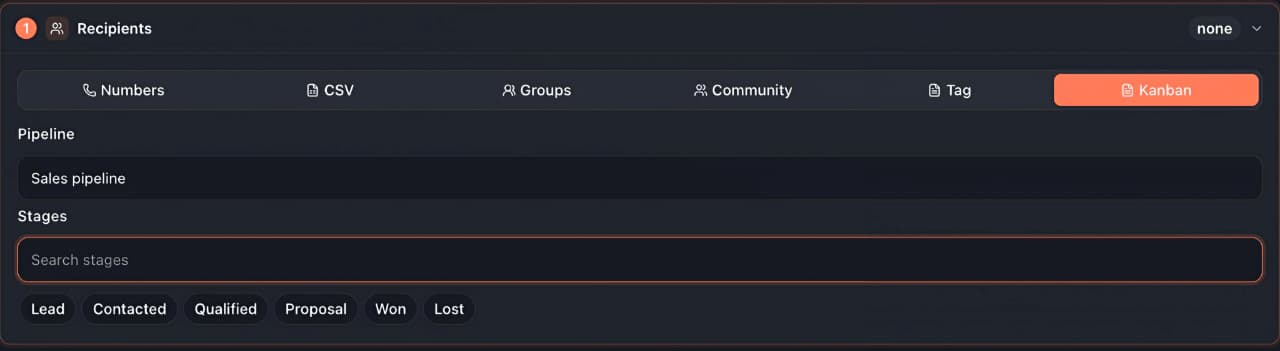 Recipients → Kanban: choose a pipeline, then pick the stage chips to send to
Messages
Step 2 is the composer. A campaign is a list of message items sent in order — mix text and media freely.
- Add Text / Add Media — append a text block or attach an image, video, audio or document. Reorder items with the up/down controls, or remove them.
- Variables — drop any of
{{name}},{{firstname}},{{phone}},{{custom1}},{{custom2}},{{date}}or{{time}}into the text.{{phone}},{{date}}and{{time}}always work; the name and custom variables only fill in for structured sources (CSV, and contacts the extension knows). - Spintax — write
{Hi|Hello|Hey}and each recipient gets one of the variants at random. This, plus per-recipient variables, means no two messages are byte-identical — a key anti-fingerprinting measure. - AI variants — generate a set of reworded versions of a message with one click, then save and reuse them, so a campaign reads naturally across hundreds of sends.
Schedule
Step 3 decides when the campaign runs.
- Now — start sending as soon as you confirm.
- Later — pick a date and time (it cannot be in the past) and a recurrence of Once, Daily or Weekly. Scheduled sends fire from the background service worker, so the campaign goes out even if the WhatsApp tab is closed — as long as Chrome is running.
Audience actions
Step 4 is optional. It lets you act on each chat after its message sends successfully — turning a broadcast into a workflow:
- Group — automatically add the recipient to (or remove them from) chosen groups. Groups where you are not an admin are skipped silently.
- Tag — add or remove CRM tags from the chat.
- Skip tag — before sending, skip any chat already carrying a chosen tag. This is how you build "send once per contact" campaigns that never re-message someone.
- Kanban — move the chat into (or out of) a chosen pipeline stage.
Settings
Step 5 is the pacing and anti-block control panel — the most important step for staying unbanned.
- Pacing presets — pick a saved preset (each carries a min–max delay and an hourly cap). Editing any field flips the selector to Custom, and you can Save as a new preset to reuse later. Presets sync across your devices.
- Min / Max delay — the random gap (in seconds) Ideaz AI waits between each message. A randomised range looks far more human than a fixed interval.
- Hourly cap — the maximum messages sent per hour.
- Cool-down breaks — optionally pause for a set number of seconds after every N recipients, to break up long runs.
Number validation before sending is deliberately off — bulk "does this number have WhatsApp?" checks are themselves a fast route to a ban. For the full strategy, read the anti-blocking guide before any campaign over a few hundred messages.
<!-- screenshot: drop /screenshots/docs/bulk-sender/settings.jpeg here -->Sending, pausing and resuming
When the steps are complete, the action bar at the bottom summarises the run — recipient count, message items, the delay range and any pause interval — and offers:
- Reset — clear the form.
- Save Draft — store the whole campaign to finish or send later.
- Quick Start — send immediately with a minimal confirmation.
- Preview Send / Preview Schedule — open a final review showing the recipient count, message count, delay range, hourly cap, the scheduled time (if any) and an estimated runtime. A WhatsApp anti-spam reminder must be acknowledged before the send begins.
While a campaign runs, a live progress panel shows queued / sent / failed / skipped, the current recipient and a rolling log. You can pause, resume or stop at any time, and minimising the window keeps the queue sending in the background. If too many recipients lack a WhatsApp account, a risk dialog gates the send so you can cancel before burning your number's reputation.
If a campaign is interrupted, a Resume unsent campaign banner appears next time, showing how many were sent versus still pending, so you can pick up exactly where it stopped — or discard it.